> ## Documentation Index
> Fetch the complete documentation index at: https://docs.uniblock.dev/llms.txt
> Use this file to discover all available pages before exploring further.
# Integrations
> Uniblock Auto Routing is a great API key management tool when you configure your own keys to Uniblock. If you already have keys with some service providers in order to access different sectors of blockchain data, bring them in to Uniblock following this guide and you can have a provider backup list to ensure uninterrupted service.
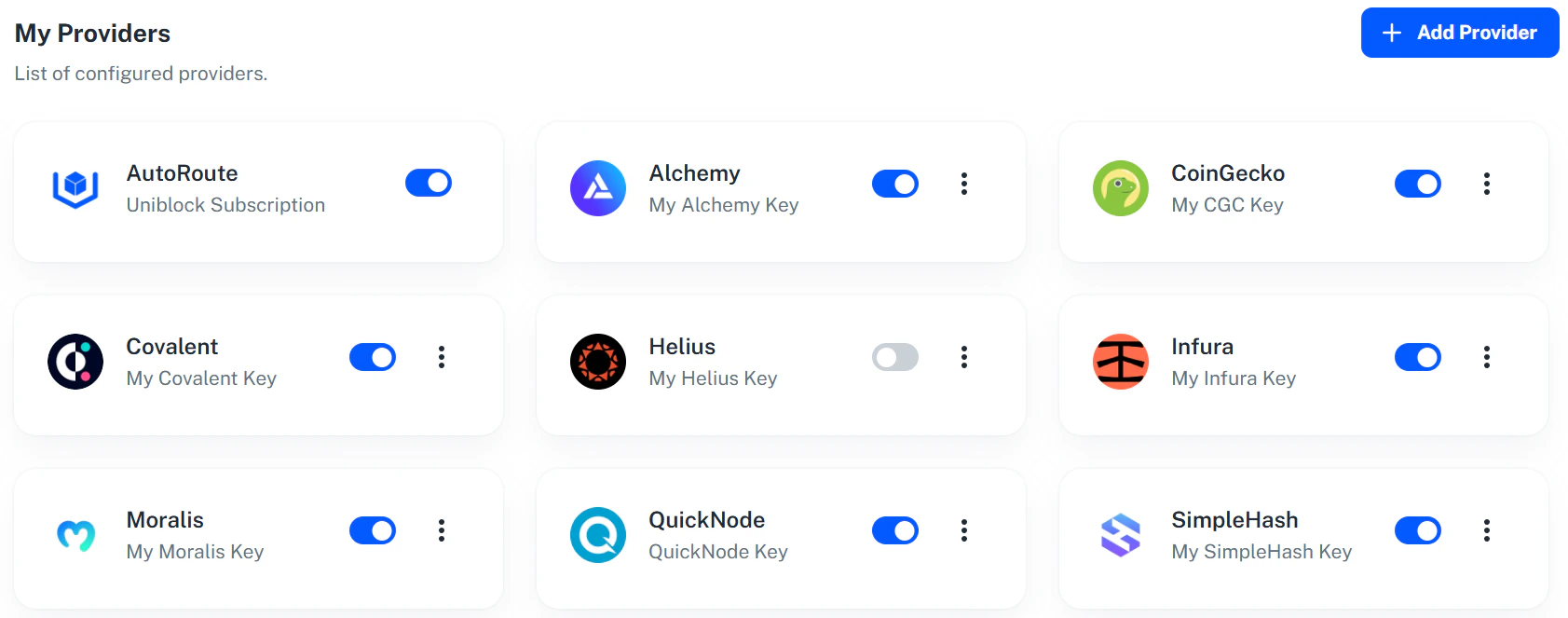 ### Configure Provider
1. Firstly, hit the `Add Provider` button.
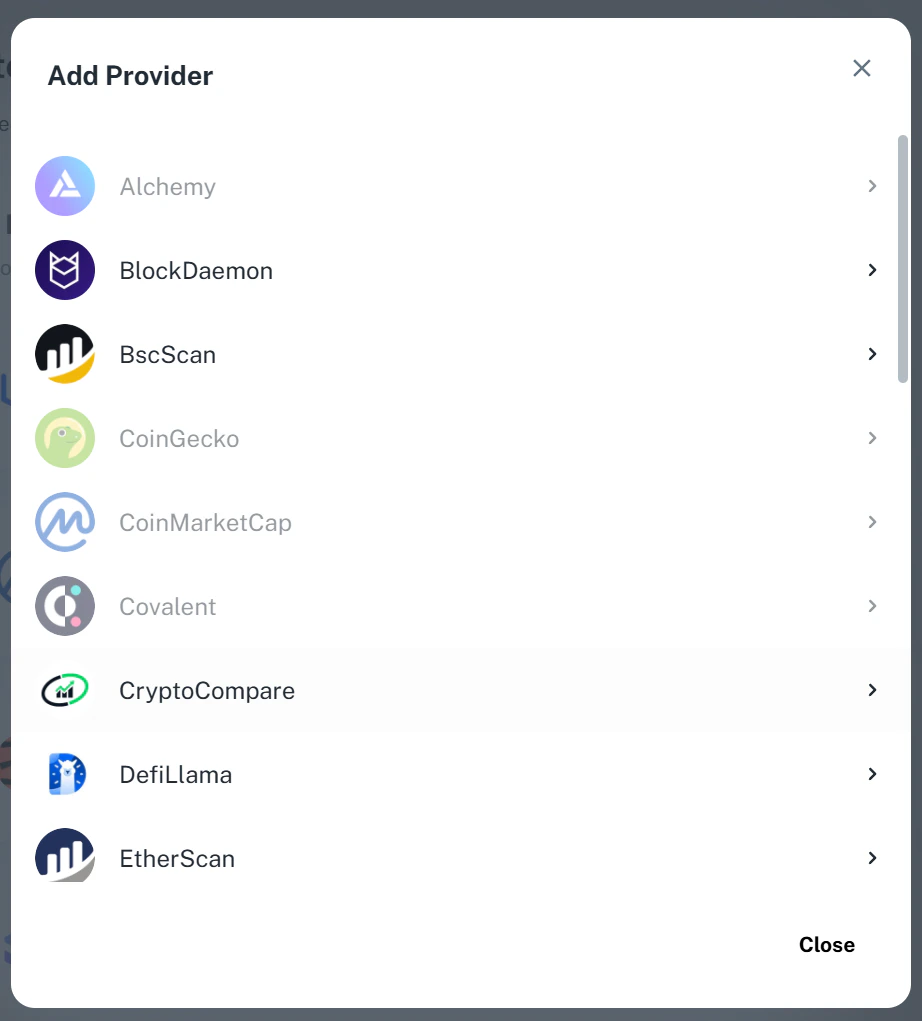
2. Choose a provider's API key to add. There will be integration guide to show you where to look or sign up for the API key on each service provider's website.
### Configure Provider
1. Firstly, hit the `Add Provider` button.
2. Choose a provider's API key to add. There will be integration guide to show you where to look or sign up for the API key on each service provider's website.
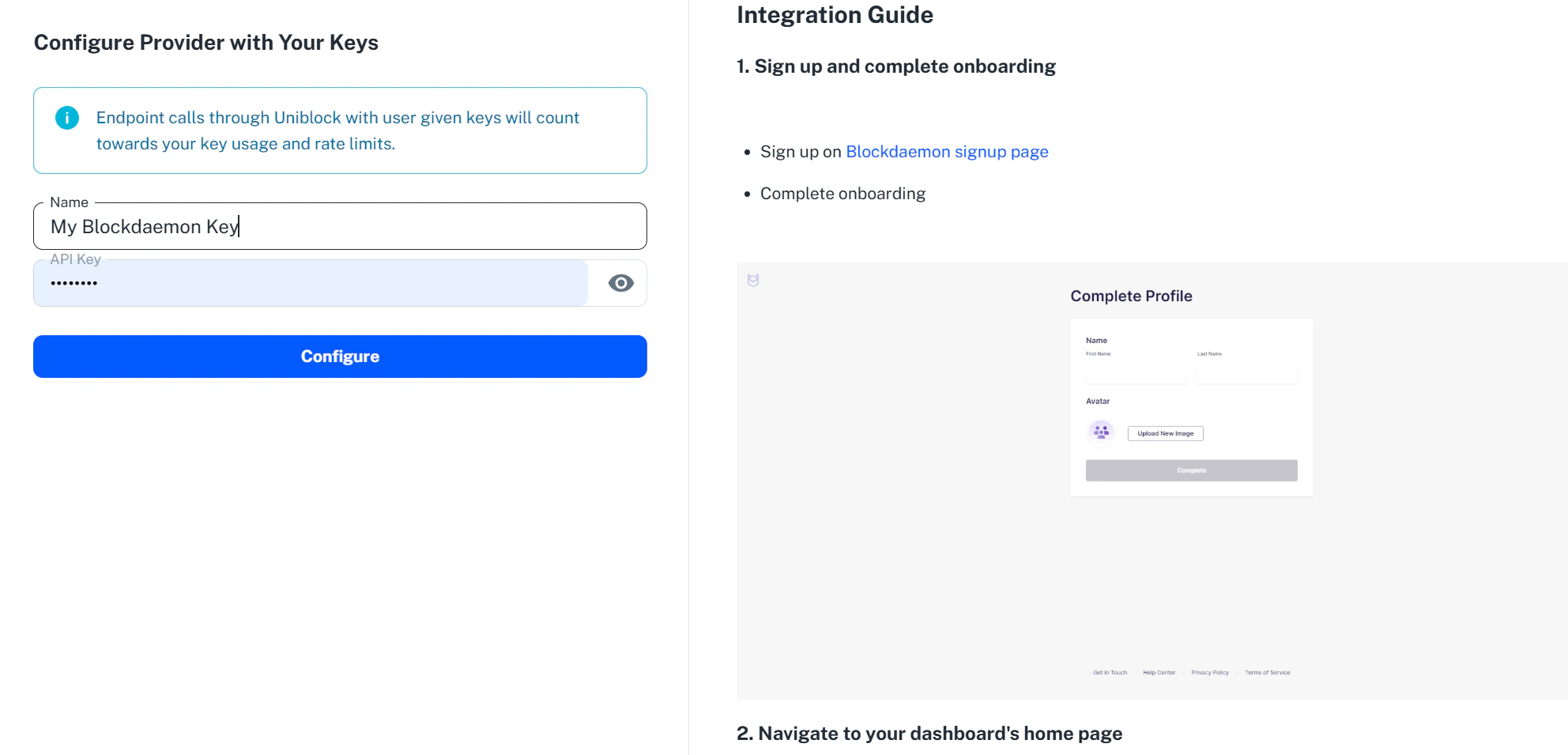 3. Once pasted the key over, hit `Configure` button to finish the configuration.
### Disable A Provider
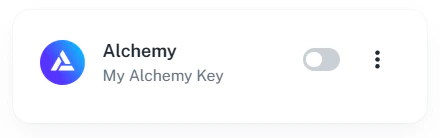
* To disable a provider key toggle off the provider on Integrations Page
3. Once pasted the key over, hit `Configure` button to finish the configuration.
### Disable A Provider
* To disable a provider key toggle off the provider on Integrations Page
 ### Remove A Provider
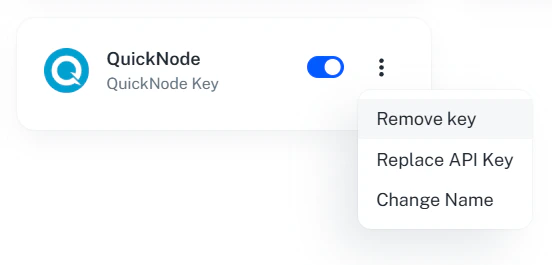
* To remove a provider key click on the `three dots` button on the top right. You can then click on remove key to remove the provider from your project.
### Remove A Provider
* To remove a provider key click on the `three dots` button on the top right. You can then click on remove key to remove the provider from your project.